Breadcrumbs
Updated in October 2026
Use breadcrumbs to help users understand where they are in the website or service.
<nav class="nhsw-breadcrumb" aria-label="breadcrumb">
  <p class="nhsw-breadcrumb__mobile-back">
    <a class="nhsw-back-link" href="/nhs-services">Back to NHS services</a>
  </p>
  <ol class="nhsw-breadcrumb__list">
    <li class="nhsw-breadcrumb__list-item"><a class="nhsw-breadcrumb__link" href="/">Home</a></li>
    <li class="nhsw-breadcrumb__list-item"><a class="nhsw-breadcrumb__link" href="/nhs-services">NHS services</a></li>
    <li class="nhsw-breadcrumb__list-item"><a class="nhsw-breadcrumb__link" href="/hospitals">Hospitals</a></li>
  </ol>
</nav>
{% from "breadcrumb/macro.njk" import nhswBreadcrumb %}
{{ nhswBreadcrumb({
items: [
{ text: "Home", href: "/" },
{ text: "NHS services", href: "/nhs-services" },
{ text: "Hospitals", href: "/hospitals" }
]
}) }}When to use breadcrumbs
Use breadcrumbs when users may need to:
- understand where they are in the wider website or service
- navigate between related content
- move back to a higher-level page to explore other options
When not to use breadcrumbs
Do not use breadcrumbs in transactional journeys.
They can distract users from completing their task and encourage them to leave the journey before they have finished.
How to use breadcrumbs
If the full breadcrumb trail does not fit on 1 line, allow it to wrap onto 2 lines. Keep each breadcrumb link on the same line.
Do not include the current page in the breadcrumb trail. The page heading already tells users where they are.
On smaller screens, replace the full breadcrumb trail with a "Back to [parent page]" link.
Add aria-label="breadcrumb" to the nav element so screen reader users can identify the breadcrumb navigation.
Accessibility
Leave space around breadcrumb links. Avoid placing other interactive elements immediately beside them to reduce the risk of users selecting the wrong thing. This supports WCAG 2.2 Success Criterion 2.5.8: Target Size, level AA.
Make sure all users can see the breadcrumbs. The background colour must have a contrast ratio of at least 4.5:1 with white to meet WCAG 2.2 Success Criterion 1.4.3: Contrast (Minimum), level AA
Source
Learn more about Breadcrumbs in the GOV.UK Design System.
Breadcrumbs variants
Breadcrumbs on dark backgrounds
<nav class="nhsw-breadcrumb nhsw-breadcrumb--reverse" aria-label="breadcrumb">
  <p class="nhsw-breadcrumb__mobile-back">
    <a class="nhsw-back-link nhsw-back-link--reverse" href="/nhs-services">Back to NHS services</a>
  </p>
  <ol class="nhsw-breadcrumb__list">
    <li class="nhsw-breadcrumb__list-item"><a class="nhsw-breadcrumb__link" href="/">Home</a></li>
    <li class="nhsw-breadcrumb__list-item"><a class="nhsw-breadcrumb__link" href="/nhs-services">NHS services</a></li>
    <li class="nhsw-breadcrumb__list-item"><a class="nhsw-breadcrumb__link" href="/hospitals">Hospitals</a></li>
  </ol>
</nav>
{{ nhswBreadcrumb({
items: [
{ text: "Home", href: "/" },
{ text: "NHS services", href: "/nhs-services" },
{ text: "Hospitals", href: "/hospitals" }
],
classes: "nhsw-breadcrumb--reverse"
}) }}This breadcrumbs variant is designed for use on dark backgrounds, where the standard version may not provide enough contrast.
Use the nhsw-breadcrumb--reverse modifier class to show white links and arrows on dark backgrounds.
Examples
Welsh Immunisation System (WIS)
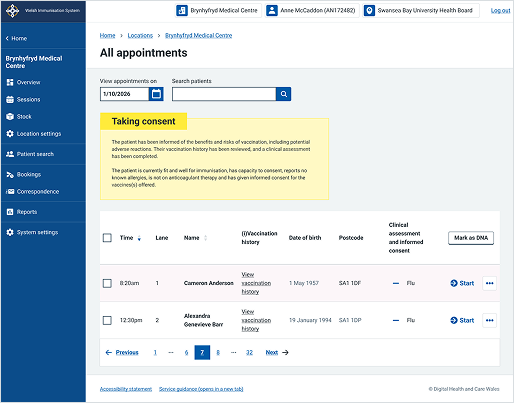
This example shows the "All appointments" page within a specific medical centre location in WIS. It uses a breadcrumb trail at the top left of the main content area to orient users within the system hierarchy.