Tag
Updated in October 2026
Use the tag component to show users the status of something.
| Application | Status |
|---|---|
| Lesley Okafor | Urgent |
| Idris Jones | New |
| Anwen Peters | New |
| Rhys McDonald | New |
| Della Li | Finished |
| Harri Singh | Waiting on |
<strong class="nhsw-tag nhsw-tag--red">Urgent</strong>{% from "tag/macro.njk" import nhswTag %}
{{ nhswTag({
text: "Urgent",
classes: "nhsw-tag--red"
}) }}When to use tags
Use the tag component when it's possible for something to have more than 1 status and it's useful for the user to know about that status. For example, you can use a tag to show whether an item in a task list has been "finished".
How to use tags
Tags should just be used to indicate a status. Do not add links. Use adjectives rather than verbs for the names of your tags. Using a verb might make a user think that clicking on them will do something.
Accessibility
If users can change the order of tags, provide an alternative to dragging and dropping. Users should be able to reorder tags using another method, such as buttons or keyboard controls. This is to support WCAG 2.2 Success Criterion 2.5.7 Dragging Movements level AA.
All text and background colour combinations meet high colour contrast standards, supporting WCAG 2.2 Success Criterion 1.4.3: Contrast (Enhanced), level AAA. Read more about accessibility and colour.
Do not rely on colour alone to convey meaning. Use clear text labels so all users can understand the purpose of a tag, regardless of how they perceive colour. This supports WCAG 2.2 Success Criterion 1.4.1 Use of Colour, level A.
Source
Learn more about Tags in the NHS England Design System.
Follow discussions about Tags on NHS England GitHub to see the latest updates and resolved issues.
Tag variants
Showing 1 or 2 tags
| Application | Status |
|---|---|
| Lesley Okafor | Inactive |
| Idris Jones | Inactive |
| Anwen Peters | Active |
| Rhys McDonald | Active |
| Della Li | Inactive |
| Harri Singh | Active |
<strong class="nhsw-tag nhsw-tag--grey">Inactive</strong>
<strong class="nhsw-tag nhsw-tag--dhcw-blue">Active</strong>
{{ nhswTag({ text: "Inactive", classes: "nhsw-tag--grey" }) }}
{{ nhswTag({ text: "Active", classes: "nhsw-tag--dhcw-blue" }) }}Use a single status tag when users only need to know whether something has been completed. For example, you might show a “Completed tag” and leave incomplete items untagged.
In some cases, it may be helpful to use 2 status tags to show different states. For example, you could use “Active” and “Inactive” tags to help users understand the current status of an account, service or item.
Showing multiple tags
| Class name | Tag |
|---|---|
nhsw-tag--white | In progress |
nhsw-tag--grey | Inactive |
nhsw-tag--aqua-green | Pending |
nhsw-tag--blue | Active |
nhsw-tag--green | New |
nhsw-tag--orange | Declined |
nhsw-tag--pink | Sent |
nhsw-tag--purple | Received |
nhsw-tag--red | Rejected |
nhsw-tag--yellow | Delayed |
nhsw-tag--dhcw-blue | Active |
<strong class="nhsw-tag nhsw-tag--white">In progress</strong>
<strong class="nhsw-tag nhsw-tag--grey">Inactive</strong>
<strong class="nhsw-tag nhsw-tag--aqua-green">Pending</strong>
{{ nhswTag({ text: "In progress", classes: "nhsw-tag--white" }) }}
{{ nhswTag({ text: "Inactive", classes: "nhsw-tag--grey" }) }}
{{ nhswTag({ text: "Pending", classes: "nhsw-tag--aqua-green" }) }}Keep the number of status tags to a minimum. The more statuses you use, the harder they are for users to understand and remember.
Start with the smallest number of statuses that meet user needs. Only add more statuses if user research shows they are necessary.
If you need additional status colours, use the colour tints displayed above.
Tags and colour
You can use colour to help distinguish between different tags, or to help draw the user's attention to a tag if it's especially important. For example, it makes sense to use nhsw-tag--red for a tag that reads "Urgent".
Do not rely on colour alone to convey information because it's not accessible. If you use the same tag in more than 1 place, make sure you keep the colour consistent.
Because tags with solid colours tend to stand out more, it's usually best to avoid mixing solid colours and tints: use one or the other. This matters less if you're only using 2 colours. For example, it's okay to use the nhsw-tag--grey and solid blue tags together if you only need 2 statuses.
We use a border of the same colour as the tag text to stand out against the page background colour.
Tags and subtext
In progress
21 of 80
Inactive
9 of 80
Active
28 of 80
New
22 of 80
<strong class="nhsw-tag nhsw-tag--blue">Active<br>28 of 80</strong>{{ nhswTag({ html: "Active<br>28 of 80", classes: "nhsw-tag--blue" }) }}Use the subtext under the status tag to show key supporting information. This can help users understand the status at a glance without needing to view additional details.
For example, the subtext could show how many items are in a particular state, such as “21 of 80”, to give users context about progress or workload.
Two-part tags
Tag: Flu: Due vaccination Tag: HPV: Vaccinated Tag: MMRV: Needs triage Tag: MMRV: Had a refusal
<span class="nhsw-tag-group">
  <span class="nhsw-visually-hidden">Tag: </span>
  <strong class="nhsw-tag nhsw-tag--white">Flu</strong>
  <span class="nhsw-visually-hidden">: </span>
  <strong class="nhsw-tag nhsw-tag--green">Due vaccination</strong>
</span>
{% from "tag/macro.njk" import nhswTagGroup %}
{{ nhswTagGroup({
category: { text: "Flu", classes: "nhsw-tag--white" },
status: { text: "Due vaccination", classes: "nhsw-tag--green" }
}) }}Use two-part (compound) tags when you need to combine a category name with its status. They are useful in complex views where users need to quickly understand both what something is and its current state.
For example, in a vaccination service, a tag could show a vaccine type on the left, such as "Flu", "HPV" or "MMRV", and its status on the right, such as "Due vaccination", "Vaccinated", "Needs triage" or "Had a refusal".
Examples
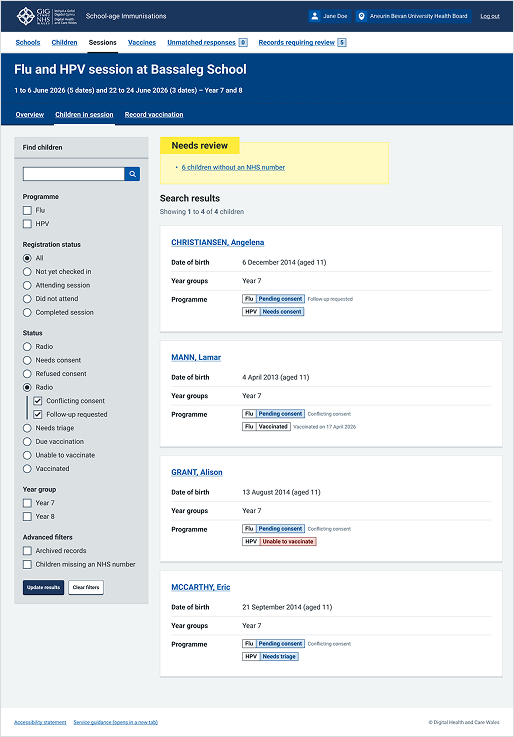
Welsh Immunisation System (WIS)
This example shows a session results page from the School-age Immunisations service within WIS. It uses tags within the search list to clearly indicate the progress or state of a child's record.