Header
Updated in October 2026
Use the site header to show users they are on a DHCW service and to give access to primary navigation and search.
<header class="nhsw-site-header">
  <div class="nhsw-site-header__container">
    <div class="nhsw-site-header__top">
      <a class="nhsw-site-header__brand" href="/">
        <span class="nhsw-site-header__logo">
          <img src="/assets/nhsw-logo.svg" alt="Digital Health and Care Wales">
        </span>
        <span class="nhsw-site-header__title">Service name</span>
      </a>
      <form class="nhsw-site-header__search" role="search" onsubmit="return false;">
        <label class="nhsw-visually-hidden" for="site-search">Search</label>
        <input id="site-search" class="nhsw-site-header__search-input" type="search" placeholder="Search">
        <button class="nhsw-site-header__search-button" type="submit" aria-label="Search"></button>
      </form>
    </div>
  </div>
</header>
{% from "header/macro.njk" import nhswHeader %}
{{ nhswHeader({
serviceName: "Service name",
serviceUrl: "/"
}) }}When to use the header
Use a site header on every page of a public-facing or internal service to show users they are on an official DHCW digital service.
If you use the page template, the header is included by default.
How to use the header
The header contains the NHS Wales logo and service name. It can also include search when users need to search the service.
Keep the number of items in the header to a minimum so users can easily identify the service and the actions available to them.
Use a short, clear service name that helps users understand which service they are using.
With navigation
Add site navigation when users need to move between the main sections of your service.
Include a <nav class="nhsw-site-header__nav"> element immediately after the closing </div> of nhsw-site-header__container to add a navigation row below the top bar. See the site navigation component for more guidance
On smaller screens, the navigation is hidden. Use the mobile bottom navigation instead.
Use nhsw-site-header__nav-link--current and aria-current="page" to show the current page.
Without navigation
If your service does not need site navigation, do not include the <nav> element. The header can be used on its own.
Without a search bar
<header class="nhsw-site-header">
  <div class="nhsw-site-header__container">
    <div class="nhsw-site-header__top">
      <a class="nhsw-site-header__brand" href="/">
        <span class="nhsw-site-header__logo">
          <img src="/assets/nhsw-logo.svg" alt="Digital Health and Care Wales">
        </span>
        <span class="nhsw-site-header__title">Service name</span>
      </a>
    </div>
  </div>
</header>
{{ nhswHeader({ serviceName: "Service name", serviceUrl: "/", search: false }) }}If your service does not need search, remove the nhsw-site-header__search element. The header can be used without search.
Mobile bottom navigation
On smaller screens, the header navigation is hidden. Use nhsw-bottom-nav to show the main navigation at the bottom of the screen instead.
The bottom navigation is only shown on mobile.
Preventing content overlap
When using bottom navigation, add nhsw-has-bottom-nav to <body>. This adds space at the bottom of the page so content is not hidden behind the navigation.
Current page
Use nhsw-bottom-nav__link--current and aria-current="page" to show which page the user is currently viewing.
Icons
Place icons inside nhsw-bottom-nav__icon. If an icon is decorative, use aria-hidden="true" so screen readers ignore it. Use nhsw-bottom-nav__label for the visible link text.
Accessibility
Headers must use a semantic <header> element so assistive technologies can identify it as a landmark. This supports WCAG 2.2 Success Criterion 1.3.1 Info and Relationships, level A.
The search input must have a visible or programmatically associated label. Do not rely on placeholder text alone. This supports WCAG 2.2 Success Criterion 3.3.2 Labels or Instructions, level A.
Source
Learn more about Headers in the NHS England Design System.
Header variants
Logged-in header
<header class="nhsw-site-header nhsw-site-header--light nhsw-site-header--compact">
  <div class="nhsw-site-header__container">
    <div class="nhsw-site-header__top">
      <div class="nhsw-site-header__account">
        <div class="nhsw-site-header__account-info">
          <span class="nhsw-site-header__user"><span class="nhsw-site-header__user-icon" aria-hidden="true"><svg width="24" height="24" viewBox="0 0 24 24" aria-hidden="true" focusable="false"><path fill="currentColor" d="M12 3a4.5 4.5 0 1 0 0 9 4.5 4.5 0 0 0 0-9zm0 11c-4.4 0-8 2.2-8 5v2h16v-2c0-2.8-3.6-5-8-5z"/></svg></span><span class="nhsw-site-header__user-name">Jane Doe</span></span>
          <span class="nhsw-site-header__user"><span class="nhsw-site-header__user-icon" aria-hidden="true"><svg width="24" height="24" viewBox="0 0 24 24" aria-hidden="true" focusable="false"><path fill="currentColor" fill-rule="evenodd" d="M12 2a7 7 0 0 0-7 7c0 5.2 7 13 7 13s7-7.8 7-13a7 7 0 0 0-7-7zm-1 4h2v2h2v2h-2v2h-2v-2H9V8h2z"/></svg></span><span class="nhsw-site-header__user-name">Aneurin Bevan University Health Board</span></span>
        </div>
        <a class="nhsw-site-header__logout" href="#">Sign out</a>
      </div>
    </div>
  </div>
</header>
<header class="nhsw-site-header nhsw-site-header--light nhsw-site-header--compact">
<div class="nhsw-site-header__container">
<div class="nhsw-site-header__top">
<div class="nhsw-site-header__account">
<div class="nhsw-site-header__account-info">
<span class="nhsw-site-header__user"><span class="nhsw-site-header__user-icon" aria-hidden="true"><svg width="24" height="24" viewBox="0 0 24 24" aria-hidden="true" focusable="false"><path fill="currentColor" d="M12 3a4.5 4.5 0 1 0 0 9 4.5 4.5 0 0 0 0-9zm0 11c-4.4 0-8 2.2-8 5v2h16v-2c0-2.8-3.6-5-8-5z"/></svg></span><span class="nhsw-site-header__user-name">Jane Doe</span></span>
<span class="nhsw-site-header__user"><span class="nhsw-site-header__user-icon" aria-hidden="true"><svg width="24" height="24" viewBox="0 0 24 24" aria-hidden="true" focusable="false"><path fill="currentColor" fill-rule="evenodd" d="M12 2a7 7 0 0 0-7 7c0 5.2 7 13 7 13s7-7.8 7-13a7 7 0 0 0-7-7zm-1 4h2v2h2v2h-2v2h-2v-2H9V8h2z"/></svg></span><span class="nhsw-site-header__user-name">Aneurin Bevan University Health Board</span></span>
</div>
<a class="nhsw-site-header__logout" href="#">Sign out</a>
</div>
</div>
</div>
</header><header class="nhsw-site-header nhsw-site-header--compact">
<div class="nhsw-site-header__container">
<div class="nhsw-site-header__top">
<div class="nhsw-site-header__account">
<div class="nhsw-site-header__account-info">
<span class="nhsw-site-header__user"><span class="nhsw-site-header__user-icon" aria-hidden="true"><svg width="24" height="24" viewBox="0 0 24 24" aria-hidden="true" focusable="false"><path fill="currentColor" d="M12 3a4.5 4.5 0 1 0 0 9 4.5 4.5 0 0 0 0-9zm0 11c-4.4 0-8 2.2-8 5v2h16v-2c0-2.8-3.6-5-8-5z"/></svg></span><span class="nhsw-site-header__user-name">Jane Doe</span></span>
<span class="nhsw-site-header__user"><span class="nhsw-site-header__user-icon" aria-hidden="true"><svg width="24" height="24" viewBox="0 0 24 24" aria-hidden="true" focusable="false"><path fill="currentColor" fill-rule="evenodd" d="M12 2a7 7 0 0 0-7 7c0 5.2 7 13 7 13s7-7.8 7-13a7 7 0 0 0-7-7zm-1 4h2v2h2v2h-2v2h-2v-2H9V8h2z"/></svg></span><span class="nhsw-site-header__user-name">Aneurin Bevan University Health Board</span></span>
</div>
<a class="nhsw-site-header__logout" href="#">Sign out</a>
</div>
</div>
</div>
</header><header class="nhsw-site-header nhsw-site-header--compact">
<div class="nhsw-site-header__container">
<div class="nhsw-site-header__top">
<div class="nhsw-site-header__account">
<div class="nhsw-site-header__account-info">
<span class="nhsw-site-header__user"><span class="nhsw-site-header__user-icon" aria-hidden="true"><svg width="24" height="24" viewBox="0 0 24 24" aria-hidden="true" focusable="false"><path fill="currentColor" d="M12 3a4.5 4.5 0 1 0 0 9 4.5 4.5 0 0 0 0-9zm0 11c-4.4 0-8 2.2-8 5v2h16v-2c0-2.8-3.6-5-8-5z"/></svg></span><span class="nhsw-site-header__user-name">Jane Doe</span></span>
<span class="nhsw-site-header__user"><span class="nhsw-site-header__user-icon" aria-hidden="true"><svg width="24" height="24" viewBox="0 0 24 24" aria-hidden="true" focusable="false"><path fill="currentColor" fill-rule="evenodd" d="M12 2a7 7 0 0 0-7 7c0 5.2 7 13 7 13s7-7.8 7-13a7 7 0 0 0-7-7zm-1 4h2v2h2v2h-2v2h-2v-2H9V8h2z"/></svg></span><span class="nhsw-site-header__user-name">Aneurin Bevan University Health Board</span></span>
</div>
<a class="nhsw-site-header__logout" href="#">Sign out</a>
</div>
</div>
</div>
</header>Use this variant when users are signed in to a service.
You can show account information such as the user’s name and role. Account information can be links or plain text.
Keep account links to a minimum. If you need more than 3, consider moving them to a separate account page.
Put ‘Log out’ last in the list of account links on both desktop and smaller screens.
Logged-in header (with service name)
 Service name
<header class="nhsw-site-header nhsw-site-header--light nhsw-site-header--compact">
  <div class="nhsw-site-header__container">
    <div class="nhsw-site-header__top">
      <a class="nhsw-site-header__brand" href="#"><span class="nhsw-site-header__logo nhsw-site-header__logo--icon"><img src="/assets/dhcw-icon.svg" alt="Digital Health and Care Wales"></span><span class="nhsw-site-header__title">Service name</span></a>
      <div class="nhsw-site-header__account">
        <div class="nhsw-site-header__account-info">
          <span class="nhsw-site-header__user"><span class="nhsw-site-header__user-icon" aria-hidden="true"><svg width="24" height="24" viewBox="0 0 24 24" aria-hidden="true" focusable="false"><path fill="currentColor" d="M12 3a4.5 4.5 0 1 0 0 9 4.5 4.5 0 0 0 0-9zm0 11c-4.4 0-8 2.2-8 5v2h16v-2c0-2.8-3.6-5-8-5z"/></svg></span><span class="nhsw-site-header__user-name">Jane Doe</span></span>
          <span class="nhsw-site-header__user"><span class="nhsw-site-header__user-icon" aria-hidden="true"><svg width="24" height="24" viewBox="0 0 24 24" aria-hidden="true" focusable="false"><path fill="currentColor" fill-rule="evenodd" d="M12 2a7 7 0 0 0-7 7c0 5.2 7 13 7 13s7-7.8 7-13a7 7 0 0 0-7-7zm-1 4h2v2h2v2h-2v2h-2v-2H9V8h2z"/></svg></span><span class="nhsw-site-header__user-name">Aneurin Bevan University Health Board</span></span>
        </div>
        <a class="nhsw-site-header__logout" href="#">Sign out</a>
      </div>
    </div>
  </div>
</header>
<header class="nhsw-site-header nhsw-site-header--light nhsw-site-header--compact">
<div class="nhsw-site-header__container">
<div class="nhsw-site-header__top">
<a class="nhsw-site-header__brand" href="#"><span class="nhsw-site-header__logo nhsw-site-header__logo--icon"><img src="/assets/dhcw-icon.svg" alt="Digital Health and Care Wales"></span><span class="nhsw-site-header__title">Service name</span></a>
<div class="nhsw-site-header__account">
<div class="nhsw-site-header__account-info">
<span class="nhsw-site-header__user"><span class="nhsw-site-header__user-icon" aria-hidden="true"><svg width="24" height="24" viewBox="0 0 24 24" aria-hidden="true" focusable="false"><path fill="currentColor" d="M12 3a4.5 4.5 0 1 0 0 9 4.5 4.5 0 0 0 0-9zm0 11c-4.4 0-8 2.2-8 5v2h16v-2c0-2.8-3.6-5-8-5z"/></svg></span><span class="nhsw-site-header__user-name">Jane Doe</span></span>
<span class="nhsw-site-header__user"><span class="nhsw-site-header__user-icon" aria-hidden="true"><svg width="24" height="24" viewBox="0 0 24 24" aria-hidden="true" focusable="false"><path fill="currentColor" fill-rule="evenodd" d="M12 2a7 7 0 0 0-7 7c0 5.2 7 13 7 13s7-7.8 7-13a7 7 0 0 0-7-7zm-1 4h2v2h2v2h-2v2h-2v-2H9V8h2z"/></svg></span><span class="nhsw-site-header__user-name">Aneurin Bevan University Health Board</span></span>
</div>
<a class="nhsw-site-header__logout" href="#">Sign out</a>
</div>
</div>
</div>
</header> Service name
<header class="nhsw-site-header nhsw-site-header--compact">
  <div class="nhsw-site-header__container">
    <div class="nhsw-site-header__top">
      <a class="nhsw-site-header__brand" href="#"><span class="nhsw-site-header__logo nhsw-site-header__logo--icon"><img src="/assets/dhcw-icon-white.svg" alt="Digital Health and Care Wales"></span><span class="nhsw-site-header__title">Service name</span></a>
      <div class="nhsw-site-header__account">
        <div class="nhsw-site-header__account-info">
          <span class="nhsw-site-header__user"><span class="nhsw-site-header__user-icon" aria-hidden="true"><svg width="24" height="24" viewBox="0 0 24 24" aria-hidden="true" focusable="false"><path fill="currentColor" d="M12 3a4.5 4.5 0 1 0 0 9 4.5 4.5 0 0 0 0-9zm0 11c-4.4 0-8 2.2-8 5v2h16v-2c0-2.8-3.6-5-8-5z"/></svg></span><span class="nhsw-site-header__user-name">Jane Doe</span></span>
          <span class="nhsw-site-header__user"><span class="nhsw-site-header__user-icon" aria-hidden="true"><svg width="24" height="24" viewBox="0 0 24 24" aria-hidden="true" focusable="false"><path fill="currentColor" fill-rule="evenodd" d="M12 2a7 7 0 0 0-7 7c0 5.2 7 13 7 13s7-7.8 7-13a7 7 0 0 0-7-7zm-1 4h2v2h2v2h-2v2h-2v-2H9V8h2z"/></svg></span><span class="nhsw-site-header__user-name">Aneurin Bevan University Health Board</span></span>
        </div>
        <a class="nhsw-site-header__logout" href="#">Sign out</a>
      </div>
    </div>
  </div>
</header>
<header class="nhsw-site-header nhsw-site-header--compact">
<div class="nhsw-site-header__container">
<div class="nhsw-site-header__top">
<a class="nhsw-site-header__brand" href="#"><span class="nhsw-site-header__logo nhsw-site-header__logo--icon"><img src="/assets/dhcw-icon-white.svg" alt="Digital Health and Care Wales"></span><span class="nhsw-site-header__title">Service name</span></a>
<div class="nhsw-site-header__account">
<div class="nhsw-site-header__account-info">
<span class="nhsw-site-header__user"><span class="nhsw-site-header__user-icon" aria-hidden="true"><svg width="24" height="24" viewBox="0 0 24 24" aria-hidden="true" focusable="false"><path fill="currentColor" d="M12 3a4.5 4.5 0 1 0 0 9 4.5 4.5 0 0 0 0-9zm0 11c-4.4 0-8 2.2-8 5v2h16v-2c0-2.8-3.6-5-8-5z"/></svg></span><span class="nhsw-site-header__user-name">Jane Doe</span></span>
<span class="nhsw-site-header__user"><span class="nhsw-site-header__user-icon" aria-hidden="true"><svg width="24" height="24" viewBox="0 0 24 24" aria-hidden="true" focusable="false"><path fill="currentColor" fill-rule="evenodd" d="M12 2a7 7 0 0 0-7 7c0 5.2 7 13 7 13s7-7.8 7-13a7 7 0 0 0-7-7zm-1 4h2v2h2v2h-2v2h-2v-2H9V8h2z"/></svg></span><span class="nhsw-site-header__user-name">Aneurin Bevan University Health Board</span></span>
</div>
<a class="nhsw-site-header__logout" href="#">Sign out</a>
</div>
</div>
</div>
</header>Use this variant when users are signed in and need to know which service they are using.
Always show the service name when users sign in to a service. This helps them understand which service or system they have accessed.
You can use account information and links alongside other header features, such as search. Keep the number of items in the header to a minimum.
User information
Consider showing account information if users:
- share a computer
- have more than 1 account or role
- need to confirm which organisation or service they are working in
Show only the information users need to identify their account, such as their name, email address, role or organisation.
Use the profile icon on the icons page to highlight 1 item of account information. Do not use it for more than 1 item.
Test the account information with users to find out which details help them identify the correct account, for example their full name or their email address.
Public facing header

<header class="nhsw-site-header nhsw-site-header--light">
  <div class="nhsw-site-header__container">
    <div class="nhsw-site-header__top">
      <a class="nhsw-site-header__brand" href="#"><span class="nhsw-site-header__logo"><img src="/assets/nhsw-logo-dark.svg" alt="Digital Health and Care Wales"></span><span class="nhsw-site-header__title">Title</span></a>
    </div>
  </div>
</header>
<header class="nhsw-site-header nhsw-site-header--light">
<div class="nhsw-site-header__container">
<div class="nhsw-site-header__top">
<a class="nhsw-site-header__brand" href="#"><span class="nhsw-site-header__logo"><img src="/assets/nhsw-logo-dark.svg" alt="Digital Health and Care Wales"></span><span class="nhsw-site-header__title">Title</span></a>
</div>
</div>
</header><header class="nhsw-site-header">
<div class="nhsw-site-header__container">
<div class="nhsw-site-header__top">
<a class="nhsw-site-header__brand" href="#"><span class="nhsw-site-header__logo"><img src="/assets/nhsw-logo.svg" alt="Digital Health and Care Wales"></span><span class="nhsw-site-header__title">Title</span></a>
</div>
</div>
</header><header class="nhsw-site-header">
<div class="nhsw-site-header__container">
<div class="nhsw-site-header__top">
<a class="nhsw-site-header__brand" href="#"><span class="nhsw-site-header__logo"><img src="/assets/nhsw-logo.svg" alt="Digital Health and Care Wales"></span><span class="nhsw-site-header__title">Title</span></a>
</div>
</div>
</header>Use this variant for public-facing services.
Use the standard DHCW or NHS Wales logo to provide consistent branding and help users recognise that they are using an official NHS Wales service.
Patient header
ANDERSON, Mary (Ms)
- Date of birth:
- 4 Apr 1990 (35y 5m)
- NHS number:
- 123 456 7890
- Gender:
- Female
- Adverse reactions:
- Peanuts, Milk, Lactose, Eggs, Shellfish
<section class="nhsw-patient-header" aria-label="Patient details">
  <div class="nhsw-patient-header__inner">
    <div class="nhsw-patient-header__row nhsw-patient-header__row--identity">
      <p class="nhsw-patient-header__name">ANDERSON, Mary (Ms)</p>
      <dl class="nhsw-patient-header__details">
        <div class="nhsw-patient-header__item">
          <dt>Date of birth:</dt>
          <dd>4 Apr 1990 (35y 5m)</dd>
        </div>
        <div class="nhsw-patient-header__item">
          <dt>NHS number:</dt>
          <dd>123 456 7890</dd>
        </div>
        <div class="nhsw-patient-header__item">
          <dt>Gender:</dt>
          <dd>Female</dd>
        </div>
      </dl>
    </div>
    <div class="nhsw-patient-header__row">
      <dl class="nhsw-patient-header__details">
        <div class="nhsw-patient-header__item">
          <dt>Adverse reactions:</dt>
          <dd>Peanuts, Milk, Lactose, Eggs, Shellfish</dd>
        </div>
      </dl>
      <a class="nhsw-link" href="#">View or change</a>
    </div>
  </div>
</section>
<section class="nhsw-patient-header" aria-label="Patient details">
<div class="nhsw-patient-header__inner">
<div class="nhsw-patient-header__row nhsw-patient-header__row--identity">
<p class="nhsw-patient-header__name">ANDERSON, Mary (Ms)</p>
<dl class="nhsw-patient-header__details">
<div class="nhsw-patient-header__item">
<dt>Date of birth:</dt>
<dd>4 Apr 1990 (35y 5m)</dd>
</div>
<div class="nhsw-patient-header__item">
<dt>NHS number:</dt>
<dd>123 456 7890</dd>
</div>
<div class="nhsw-patient-header__item">
<dt>Gender:</dt>
<dd>Female</dd>
</div>
</dl>
</div>
<div class="nhsw-patient-header__row">
<dl class="nhsw-patient-header__details">
<div class="nhsw-patient-header__item">
<dt>Adverse reactions:</dt>
<dd>Peanuts, Milk, Lactose, Eggs, Shellfish</dd>
</div>
</dl>
<a class="nhsw-link" href="#">View or change</a>
</div>
</div>
</section>Use the patient header on pages where users view, edit or act on a specific patient’s record, for example when:
- prescribing medication
- recording clinical notes
- booking an appointment
You can adapt the information shown to meet the needs of your service. However, users must always be able to identify the correct patient quickly and accurately.
Prioritise core patient identifiers. Do not add secondary information, such as contact details or administrative notes, if it makes the core identifiers difficult to find or read.
Examples
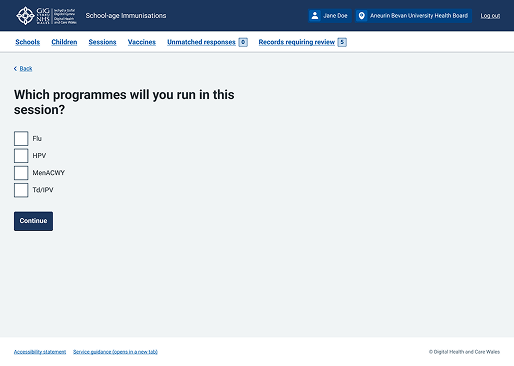
Welsh Immunisation System (WIS)
This example shows an administrative setup page from the School-age Immunisations service featuring a persistent top header. It demonstrates how you can change the background colour of the header to match your specific service branding, while maintaining official DHCW branding.
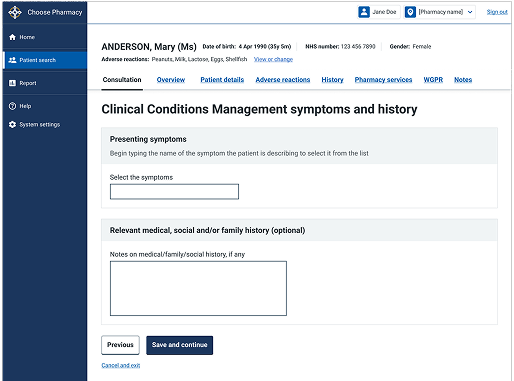
Choose Pharmacy
This is an example of the Clinical Conditions Management process for a specific patient within Choose Pharmacy, where the patient header is placed directly underneath the general header throughout the process to maintain continuous visual confirmation of the patient's identity.