Site navigation
Updated in October 2026
Site navigation gives users an overview of a site's content by outlining its main categories. It can also help users find key content.
<nav class="nhsw-site-header__nav" aria-label="Primary navigation">
  <div class="nhsw-site-header__nav-container">
    <ul class="nhsw-site-header__nav-list">
      <li><a class="nhsw-site-header__nav-link nhsw-site-header__nav-link--current" href="/item-1" aria-current="page"><span>Departments</span></a></li>
      <li><a class="nhsw-site-header__nav-link" href="/item-2"><span>Locations</span></a></li>
      <li><a class="nhsw-site-header__nav-link" href="/item-3"><span>Patient portal</span></a></li>
    </ul>
  </div>
</nav>
{% from "site-navigation/macro.njk" import nhswSiteNavigation %}
{{ nhswSiteNavigation({
items: [
{ text: "Departments", href: "/item-1", current: true },
{ text: "Locations", href: "/item-2" },
{ text: "Patient portal", href: "/item-3" }
]
}) }}When to use site navigation
Use site navigation to provide access to the main sections of a service. It helps users find what they need quickly.
Site navigation helps users move between key areas of a service and provides an overview of its structure.
To decide when to use navigation links in your service, see the Help users to navigate a service pattern in the GOV.UK Design System.
When not to use site navigation
If your service is a linear end-to-end journey, you probably do not need navigation links. You can use the Complete multiple tasks pattern in the NHS England Design System.
How to use site navigation
Site navigation is a set of links that acts as the main navigation for a website or service. It appears consistently across pages and provides access to the main sections of the service.
Place site navigation at the top of the page. On smaller screens it is hidden, unless you use the overflow menu variant, which keeps it available as an expandable menu button.
Place links to your most important top-level sections first. With the overflow menu variant, when there is not enough space to show all links, they are moved into the "More" drop-down list.
Highlight the section the user is currently viewing to help them understand where they are within the service.
Accessibility
Do not allow expanded menus to cover focused content. Avoid fixed or sticky elements that obscure the currently focused element or its focus indicator. Keyboard users must be able to see where focus is at all times. This supports WCAG 2.2 Success Criterion 2.4.11 Focus Not Obscured (Minimum), level AA.
Make sure assistive technologies can identify the list of links as a structural roadmap. The element must use a semantic HTML <nav> or a navigation ARIA landmark role to ensure screen readers can announce the block correctly to meet WCAG 2.2 Success Criterion 1.3.1 Info and Relationships, level A.
Source
Learn more about Site navigation in the GOV.Scot Design System.
Site navigation variants
Site navigation on dark backgrounds
<nav class="nhsw-site-header__nav nhsw-site-header__nav--reverse" aria-label="Primary navigation">
  <div class="nhsw-site-header__nav-container">
    <ul class="nhsw-site-header__nav-list">
      <li><a class="nhsw-site-header__nav-link nhsw-site-header__nav-link--current" href="/item-1" aria-current="page"><span>Departments</span></a></li>
      <li><a class="nhsw-site-header__nav-link" href="/item-2"><span>Locations</span></a></li>
      <li><a class="nhsw-site-header__nav-link" href="/item-3"><span>Patient portal</span></a></li>
    </ul>
  </div>
</nav>
{{ nhswSiteNavigation({
items: [
{ text: "Departments", href: "/item-1", current: true },
{ text: "Locations", href: "/item-2" },
{ text: "Patient portal", href: "/item-3" }
],
classes: "nhsw-site-header__nav--reverse"
}) }}Use this variant when site navigation appears on a dark background.
This variant adjusts the navigation styling to maintain readability, contrast and accessibility while preserving the same navigation structure and behaviour.
Site navigation with tag
<nav class="nhsw-site-header__nav" aria-label="Primary navigation">
  <div class="nhsw-site-header__nav-container">
    <ul class="nhsw-site-header__nav-list">
      <li><a class="nhsw-site-header__nav-link nhsw-site-header__nav-link--current" href="/item-1" aria-current="page"><span>Departments</span></a></li>
      <li><a class="nhsw-site-header__nav-link" href="/item-2"><span>Locations</span></a></li>
      <li><a class="nhsw-site-header__nav-link" href="/item-3"><span>Patient portal</span><span class="nhsw-tag nhsw-tag--blue nhsw-site-header__nav-badge">0</span></a></li>
    </ul>
  </div>
</nav>
{% from "site-navigation/macro.njk" import nhswSiteNavigation %}
{{ nhswSiteNavigation({
items: [
{ text: "Departments", href: "/item-1", current: true },
{ text: "Locations", href: "/item-2" },
{ text: "Patient portal", href: "/item-3", badge: 0 }
]
}) }}<nav class="nhsw-site-header__nav nhsw-site-header__nav--reverse" aria-label="Primary navigation">
<div class="nhsw-site-header__nav-container">
<ul class="nhsw-site-header__nav-list">
<li><a class="nhsw-site-header__nav-link nhsw-site-header__nav-link--current" href="/item-1" aria-current="page"><span>Departments</span></a></li>
<li><a class="nhsw-site-header__nav-link" href="/item-2"><span>Locations</span></a></li>
<li>
<a class="nhsw-site-header__nav-link" href="/item-3">
<span>Patient portal</span>
<span class="nhsw-tag nhsw-tag--blue nhsw-site-header__nav-badge">5</span>
</a>
</li>
</ul>
</div>
</nav>{{ nhswSiteNavigation({
items: [
{ text: "Departments", href: "/item-1", current: true },
{ text: "Locations", href: "/item-2" },
{ text: "Patient portal", href: "/item-3", badge: 5 }
],
classes: "nhsw-site-header__nav--reverse"
}) }}Use this variant when you need to highlight additional information about a navigation item. Tags help users quickly identify items that may require attention without changing the navigation structure.
Tags can be used to show:
- the number of unread notifications
- new messages
- outstanding tasks
- available updates
Site navigation with an overflow menu
<nav class="nhsw-site-header__nav nhsw-site-header__nav--overflow" aria-label="Primary navigation">
  <div class="nhsw-site-header__nav-container">
    <ul class="nhsw-site-header__nav-list">
      <li><a class="nhsw-site-header__nav-link nhsw-site-header__nav-link--current" href="/item-1" aria-current="page"><span>Departments</span></a></li>
      <li><a class="nhsw-site-header__nav-link" href="/item-2"><span>Locations</span></a></li>
      <li><a class="nhsw-site-header__nav-link" href="/item-3"><span>Patient portal</span></a></li>
      <li class="nhsw-site-header__menu" hidden><button type="button" class="nhsw-site-header__menu-toggle nhsw-site-header__nav-link" aria-expanded="false"><span><span class="nhsw-visually-hidden">Browse </span>More</span></button></li>
    </ul>
  </div>
</nav>
{{ nhswSiteNavigation({
items: [
{ text: "Departments", href: "/item-1", current: true },
{ text: "Locations", href: "/item-2" },
{ text: "Patient portal", href: "/item-3" }
],
overflowMenu: true
}) }}By default, site navigation is hidden on small screens. Use the overflow menu variant when users still need the navigation on a small screen, or when they zoom in. Links that do not fit move into a "More" menu, and the "More" button only appears when it is needed.
Make your browser window narrower to see links move into the menu.
This variant needs the nhsw-behaviours.js script, which works out which links fit and moves the rest into the menu. Without it, the links wrap onto more lines and the "More" button stays hidden.
Users can open the menu with the keyboard, and close it with the Escape key. An open menu pushes the content below it down instead of covering it.
Examples
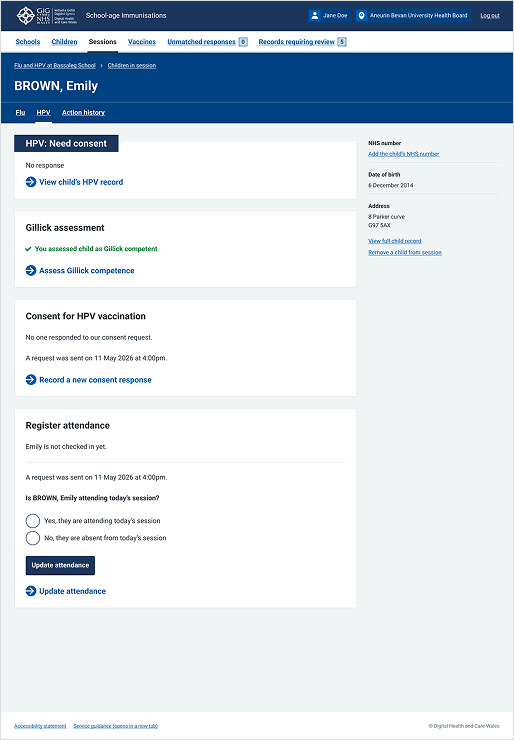
Welsh Immunisation System (WIS)
This example shows a main workflow page within the School-age Immunisations service within WIS. It uses a site navigation bar across the top of the interface to outline the primary areas of the application.
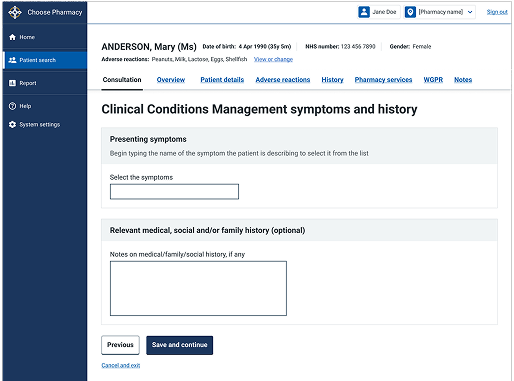
Choose Pharmacy
This example shows an active patient record screen from within the Choose Pharmacy service. It demonstrates how a secondary navigation bar is placed directly below the patient information header to manage contextual sub-sections.